Support guide contents
Make a short record of the problem
Before refreshing repeatedly, note what happened. Did the destination fail to open, did a form reject information, or did an application close unexpectedly? These are different symptoms even when they all interrupt the same task.
Record the approximate time and destination hostname. Include the visible message if there is one. Avoid sharing a full address containing a session token, recovery code or private account reference. The hostname and error wording are often enough to begin.
Check whether the problem repeats. A single interrupted request may behave differently after a refresh, but repeated attempts can also trigger rate limits or duplicate submissions. If you were submitting a form, inspect the result before submitting it again.
Change one factor at a time. Comparing another network, another browser and an app update simultaneously makes it difficult to identify the cause. Keep a brief note of each change and restore settings that did not improve the result.
Check website access and route behavior
Start by checking whether an ordinary unrelated website opens. If nothing loads, investigate the device’s connection before focusing on one destination. Check Wi-Fi status, mobile-data availability and any network sign-in screen that requires your attention.
Open one listed route and allow it time to respond. Read the final browser address after any redirect. A route label identifies an entry; it does not prove current availability, ownership or performance. This website does not perform a live speed test for those cards.
If a route fails, note whether the browser reports a timeout, an address error or a certificate warning. Do not treat those messages as interchangeable. A warning about the connection’s certificate should be investigated rather than dismissed to reach a login form.
Compare another listed destination only after recording the first result. If all routes fail in the same way, compare another network when available. A failure shared across several destinations may involve the connection, but it does not establish a specific cause without further evidence.
Avoid repeatedly changing an address by guessing alternative spellings. Similar-looking domains can belong to unrelated operators. Use destinations you can verify and pause when a redirect or message introduces an unfamiliar service.
Investigate browser-specific problems
A page can load partially while a form, image or control fails. Reload once and check that the browser is updated. If the link opened inside a messaging application, compare the checked destination in your usual standalone browser.
Extensions and content blockers may affect individual parts of a page. Review their behavior for the affected destination rather than disabling protections everywhere. If you temporarily change a setting, note the result and reverse changes that were not useful.
Cookie and storage settings can affect sign-in sessions. A site that repeatedly returns to its login screen may be unable to retain the state it needs. Check whether you are using a private window or automatically deleting data when the browser closes.
Clearing data for the affected site can remove stale state, but also removes sessions and preferences. Preserve anything necessary and make sure you can sign in again before taking that step. Clearing every website’s data is usually a much broader change than investigating one destination.
A private window provides a comparison, not a guaranteed solution. It may use different storage restrictions and still load the same extensions, depending on your settings. Describe the comparison accurately when reporting the problem.
Use connection tools deliberately
A connection application changes aspects of how your device reaches online services. Read the provider’s explanation before enabling it. DNS-only modes and VPN modes do different jobs and may have different privacy, performance and network implications.
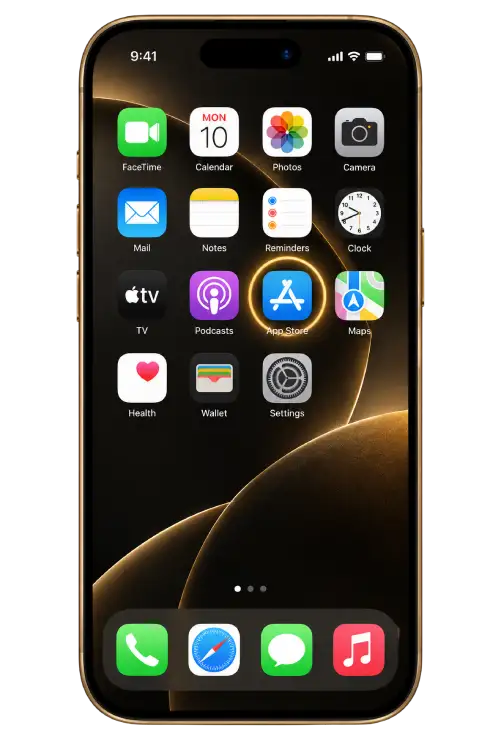
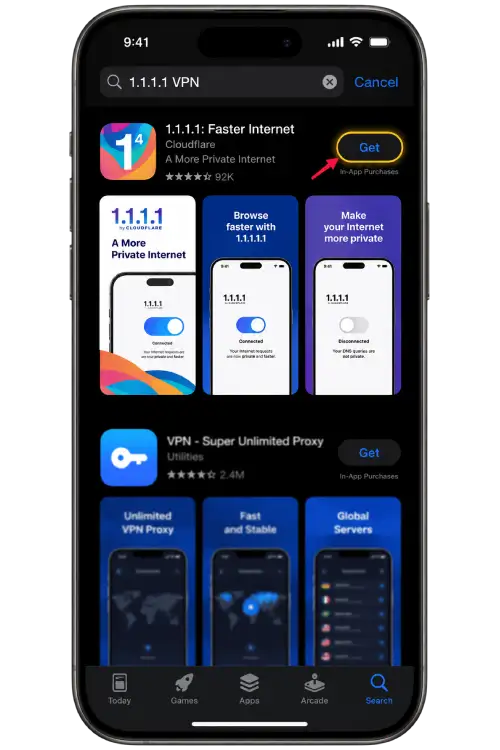
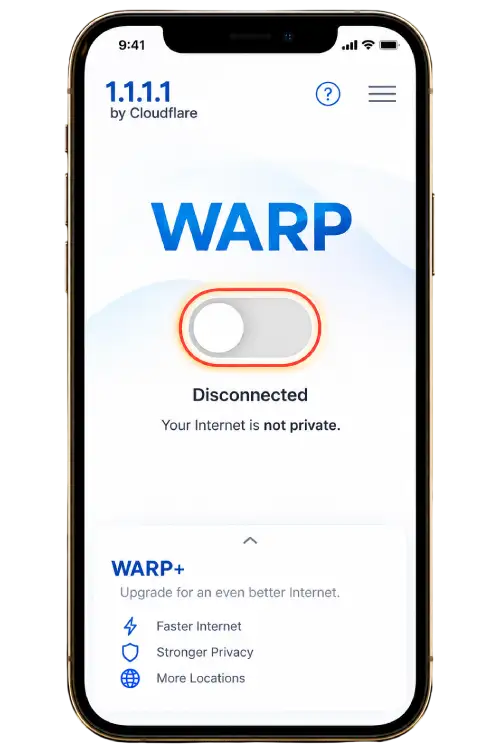
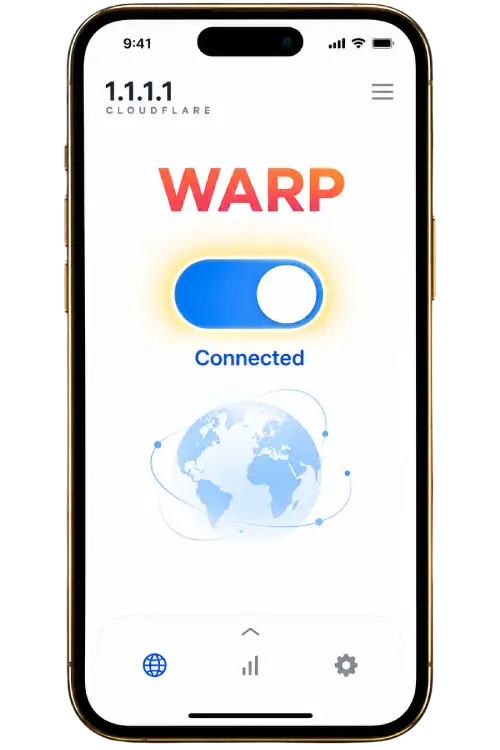
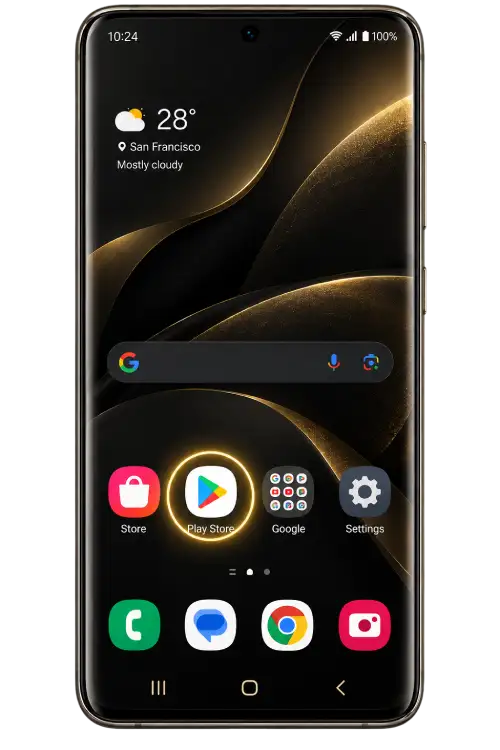
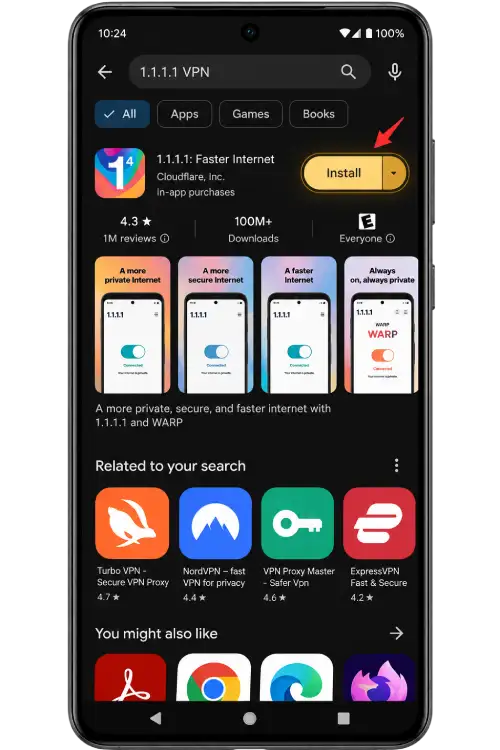
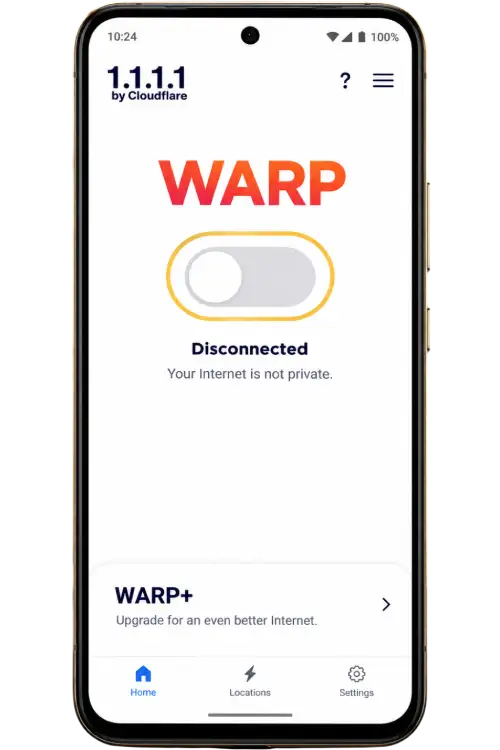
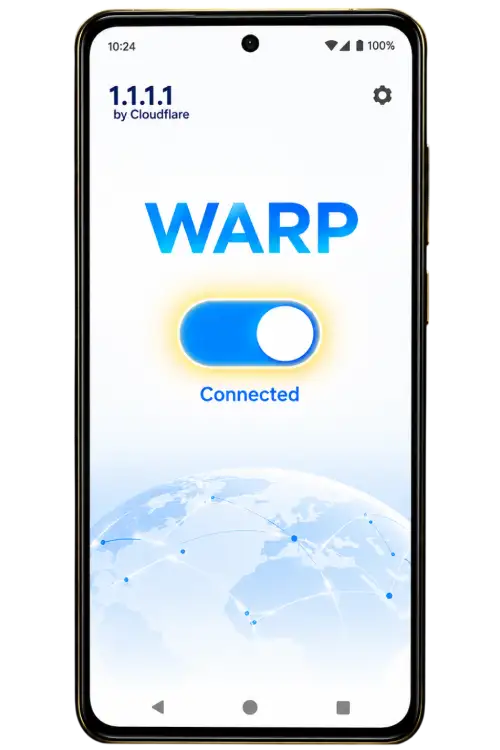
The illustrated tutorial available here describes a general setup sequence. Application screens and system permission wording can change. Check the developer, read the current prompts and approve a configuration only when it belongs to the application you intended to use.
A connection tool does not reset a password, remove an account restriction or repair incompatible software. It also cannot guarantee that a destination server is available. Keep account errors and installation failures separate from network diagnosis.
Compare the result with your normal connection. If enabling the tool makes access slower or affects another application, disconnect and review the settings. Avoid combining multiple VPNs, proxies and custom DNS changes while investigating a single failure.
Use services permitted on your network and understand who handles your traffic. The existence of a tutorial does not establish that a connection application is necessary for your task or suitable for every device.
Basic setup sequence
- Find the intended application through the provider’s distribution information.
- Review its setup screens, connection modes and privacy information.
- Read the device’s configuration request before granting permission.
- Check the connection status, reload the affected page and compare results.
Handle sign-in and recovery questions
If a page loads but rejects credentials, begin with the account identifier. Check whether the field expects a username, email address or phone number. A correct password paired with the wrong identifier can still produce a failed sign-in.
Review keyboard language, capitalization and unwanted spaces. Password managers can select an older password or a different saved account. Inspect the selected record privately instead of sharing its contents in a support message.
Use the destination’s recovery process if you do not know the current password. Creating another account does not restore the original one. Follow any waiting period shown after repeated attempts and do not use another route to try to bypass an account restriction.
Lost access to a recovery email, phone number or authenticator may require the destination’s assistance. This website cannot verify ownership or replace that review. Explain which recovery method is unavailable without publishing personal records.
Registration and verification problems
Read a registration error beside the affected field and correct that issue first. Changing several fields at once can hide the original cause. Check formatting instructions for phone numbers, usernames and password confirmation rather than guessing alternative values.
If the form says an identifier is already registered, consider whether an account exists. Review sign-in and recovery before submitting additional registrations. The destination determines its rules about account creation.
For missing verification messages, confirm the delivery address and check the relevant inbox or phone reception. Follow the resend timer. Multiple code requests can create confusion about which message belongs to the current attempt.
Never forward a code to another person offering to finish registration. Enter it only into the intended process you initiated. Unexpected verification messages should not be approved simply because they mention an account name you recognize.
Downloads and app installation
Identify the stage at which the problem occurs. A download that stops in the browser differs from an Android installer rejecting a completed package. Record the exact wording and check available storage, device requirements and download completion.
Review the source before retrying. A familiar filename or icon does not verify a package. Avoid installing several unrelated copies or an unknown repair tool while trying to resolve one installation failure.
Read security warnings rather than dismissing them. Installation permission for a browser or file manager is separate from permissions requested by the app itself. Consider each request individually and do not disable device protections globally.
Before removing an existing application, preserve local information you need and confirm that you can recover the account. Reinstallation does not reset a password or remove a restriction applied by the destination. Android APK files also do not install on iPhone or iPad.
Mobile display and interaction issues
A keyboard can cover a submit button or validation message. Dismiss it and inspect the surrounding page before assuming a form is unresponsive. Scroll deliberately rather than tapping an obscured control several times.
If text or controls appear unusually large, review browser zoom and device display settings. These settings can affect how much content fits on screen. Do not reduce accessibility settings you rely on merely to match a screenshot.
Compare portrait and landscape if a table or document is difficult to read. Some content areas scroll horizontally within their own container. Distinguish that behavior from an entire page extending beyond the screen.
When reporting a display issue, include the device model, browser version, orientation and affected page. A cropped screenshot can show the overlap without exposing private account details. Mention whether the issue persists after the keyboard is closed.
Pause when a request is unexpected
Troubleshooting should not require posting a password, verification code or recovery link in a conversation. Describe the symptom instead. If someone asks for a secret, stop and verify the recipient through a channel you already trust.
Treat unexpected remote-control requests, configuration profiles and instructions to disable security tools carefully. They can affect the device beyond the page you are trying to open. A copied logo or familiar display name does not establish the requester’s identity.
Do not approve a login prompt you did not initiate. If you receive repeated unexpected account messages, visit the known destination independently and review its account security controls. Avoid following the suspicious message merely to investigate it.
If credentials may have been disclosed, use the destination’s genuine recovery or password-change process. Review other accounts that reused the same password. This website cannot determine whether an external account has been compromised from a general description alone.
Prepare a report the recipient can use
Explain the task and failure in order. State what you opened, what action you took, what you expected and what appeared instead. Separate observed facts from assumptions about their cause.
| Include | Useful detail |
|---|---|
| Affected page | Hostname and page type, without private tokens. |
| Time | Approximate date, time and timezone. |
| Device | Model and operating system. |
| Software | Browser or application version when available. |
| Visible result | Exact error wording or a redacted screenshot. |
| Checks attempted | One change at a time and the result of each. |
Keep the report concise enough to follow. A long conversation containing several different attempts can obscure the current problem. If the symptom changes, explain the new result rather than continuing to describe the original error.
Redact passwords, codes, personal identifiers and recovery links. Crop screenshots to the relevant area and inspect them before sending. Avoid sharing complete account histories or device exports unless a verified process explains why they are needed.
Retain a private note of the report and any instructions received. This helps you avoid repeating unsuccessful changes and makes a follow-up clearer. It does not guarantee that the recipient can diagnose or resolve the issue.
Review available contact channels
The links below appear only when contact destinations are listed. Confirm the final account name or address before sending information. Similar names and images can be used by unrelated recipients.
Do not assume that an unsolicited reply comes from the channel you intended to contact. Open the listed destination yourself and compare the identity. Keep the conversation focused on the problem and withhold account secrets.
Scope and availability
External recipients control their own availability and assistance processes. This website does not promise continuous staffing, account approval or a fixed response time. A listed contact does not give this website access to external account records.
For questions about this website’s content or links, explain which mayonjl.net page is affected. For a destination account decision, use that service’s own process. Keeping those requests distinct helps direct the enquiry appropriately.
Support questions
Can this website unlock an external account?
No. Account decisions, recovery checks and restrictions are controlled by the destination service. This website provides guidance and lists contact options when available.
Should I try every route at once?
Open one route at a time and record the result. Several simultaneous tabs can make it difficult to identify which destination loaded and which session is active.
Does a timeout mean my account is blocked?
Not necessarily. A timeout describes a failed connection or delayed response. An account restriction should be assessed from the actual message shown by the destination, rather than inferred from a page that never loads.
Should I clear all browser data first?
Start with a refresh, the exact error and a network comparison. Clearing data can remove sessions and preferences. If you later clear data, consider the affected site specifically and preserve anything you need first.
Can a connection application guarantee access?
No. It cannot repair an unavailable server, incorrect credentials or incompatible software. Review its modes and privacy information and compare the result with your normal connection.
What should a useful screenshot include?
Show the relevant error and enough surrounding context to identify the step. Hide passwords, verification codes, personal identifiers, recovery links and private account information.
Is support available continuously?
This website does not publish a guaranteed staffing schedule or response time. Availability depends on the contact channel and recipient. Check any information provided by that recipient.
Why does a contact channel not appear?
A channel appears only when a destination is listed. If it is absent, this website currently provides no link for that channel. Do not guess account names based on a similar logo or display name.