Check the download source
Begin with the page distributing the file. Read its address and check whether it provides clear application information. A download may be hosted on a separate file domain, but that separation does not by itself establish who supplied the package.
Compare available developer, version and installation information through a channel you already trust. Do not rely only on a filename containing a date or version number. Those characters can be changed without changing the software inside.
This website does not provide a published package checksum or signature comparison. It also does not claim that a linked file has passed an independent security review. Treat the download decision as a separate step from opening an ordinary access page.
Avoid packages sent through unsolicited messages or pages with several competing download advertisements. If you cannot identify which file belongs to the intended service, stop. Downloading several alternatives to see which installs is not a useful way to establish authenticity.
Prepare the Android device
Check the Android version and available storage before starting. Installation can require additional working space beyond the package’s download size. Compare your device with requirements actually published by the distributor rather than assuming every Android phone is supported.
Use a connection stable enough to complete the download. A file interrupted halfway through may appear in a downloads list but remain incomplete. Wait for the browser or download manager to report completion before opening it.
Keep the device’s normal security protections enabled. If a warning appears, read it and investigate before proceeding. Do not turn off protections globally simply because an installation guide or message tells you to ignore the alert.
If you already have a similarly named application, identify it before installing another package. An update, a separate application and an unrelated copy can share similar names. Preserve any necessary local information before considering removal or replacement.
Android installation sequence
-
Review the listed destination
Open a download destination only when you can identify its source. Read the application information and check any device requirements. Do not mistake a surrounding advertisement for the intended download control.
-
Wait for the download to finish
Keep track of the browser’s download notification. If delivery fails, note the error before retrying. Do not open a partial file or a different package merely because it appears beside the expected download.
-
Review the installation request
Open the completed package through your browser or file manager. Read the system request and application details. If anything differs from what you expected, cancel and investigate.
-
Consider source permission carefully
Android may ask whether the browser or file manager can install applications. Decide only after checking the source. Menu wording differs by device. Do not disable wider security controls to bypass a warning.
-
Let installation complete
Follow the system result. If installation is blocked, read the reason rather than repeatedly opening the package. Storage, compatibility and conflicts can require different remedies.
-
Review the first launch
Open the installed application and inspect its requests before signing in. Turn off temporary installation permission when no longer needed. Keep the package only if you have a reason to retain it.
Review permissions individually
Installation permission for a browser or file manager is different from permissions requested by the installed application. Review each request in context. Allowing an installation does not mean every later request should be accepted automatically.
Read why the application requests access to a device feature. Consider whether that access makes sense for the task you are performing. If a request is unclear, pause and seek an explanation before providing broader access.
Device settings may let you review or change permissions later. Restricting a permission can affect a related feature, so compare behavior carefully and record what you changed. Avoid granting every permission simply to eliminate a prompt.
Requests involving accessibility, device administration or control over other applications deserve particular attention. This guide does not establish that such access is needed by a linked package. Do not enable sensitive controls without understanding their purpose and consequences.
First launch and account access
Allow the application to finish its initial loading process. Review introductory screens, privacy information and account options before entering credentials. A familiar logo is useful for recognition but does not verify the application’s origin.
Use login for an account you already hold with that destination. Use registration only when you intend to create a new account and have reviewed its conditions. Installing an application does not automatically create an account or recover an existing one.
If the same identifier works in a browser but not in the application, record the difference. Check the version and the exact error. Do not assume that all similarly named apps and websites share an account system.
Keep passwords and verification codes private throughout the process. An application failure is not a reason to disclose credentials to someone offering installation help. Explain the visible error instead.
Check updates and version information
Version information helps explain which software you are using. Look in the application’s settings or the device’s app information screen. A date in a download filename may be a packaging reference rather than the version installed on your phone.
Review the source of an update as carefully as the initial download. An unexpected message claiming that an urgent update is required can direct you to an unrelated file. Return to a source you can verify instead of trusting the message alone.
Before updating, preserve any local information you need and confirm that you can access your account recovery method. Updates may change screens, permissions or compatibility. Read any published release information rather than assuming the change is purely visual.
If an update cannot replace an existing installation, do not immediately remove the older app. A conflict may involve a different package or signing identity. Seek clarification about the source and preserve local data before taking an irreversible step.
Match the remedy to the installation error
Read the system message before changing settings. A download failure, a damaged package and a compatibility restriction occur at different stages. Note whether the failure happened in the browser, file manager or Android installer.
| Problem | Useful check |
|---|---|
| Download stops | Check the connection, available storage and download error. |
| Package will not open | Confirm completion and that the device supports Android packages. |
| Not enough storage | Review device storage without deleting files you still need. |
| Compatibility message | Compare the published requirements with your device and Android version. |
| Update conflict | Check the existing app and the source of the replacement package. |
| Security warning | Read the warning and investigate; do not bypass it blindly. |
These categories do not diagnose a particular file. If the package remains unexplained or repeatedly fails, stop retrying and request information from the distributor. Browser access may remain an option while the installation question is unresolved.
Avoid third-party “repair” packages that promise to remove every installation error. Adding more unknown software can create new problems and makes the original failure harder to investigate.
Investigate loading and connection issues
If installation succeeds but the application cannot load content, compare ordinary browser access. Check whether another website opens and whether the destination responds through a listed route. This helps separate a general connection issue from an app-only failure.
Compare Wi-Fi and mobile data when available, changing one factor at a time. Note whether the app shows a timeout, an empty screen or an account error. An incorrect-password message requires account troubleshooting, not repeated network changes.
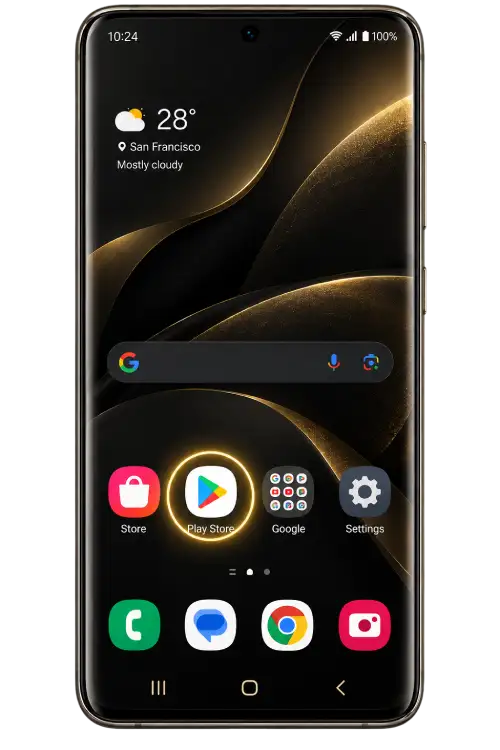
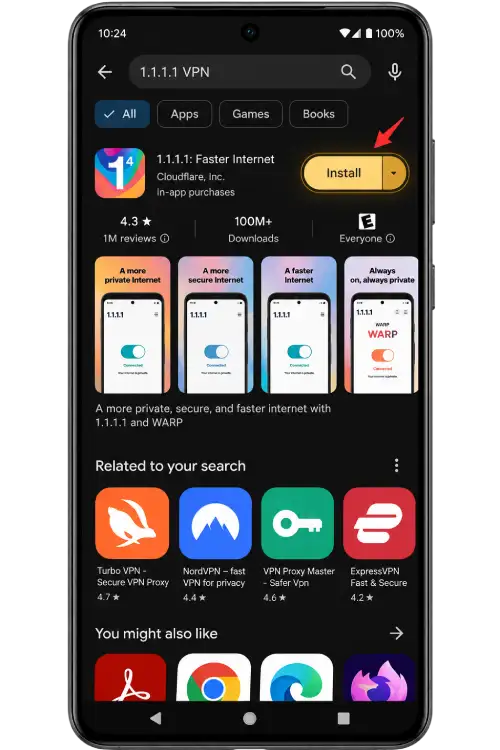
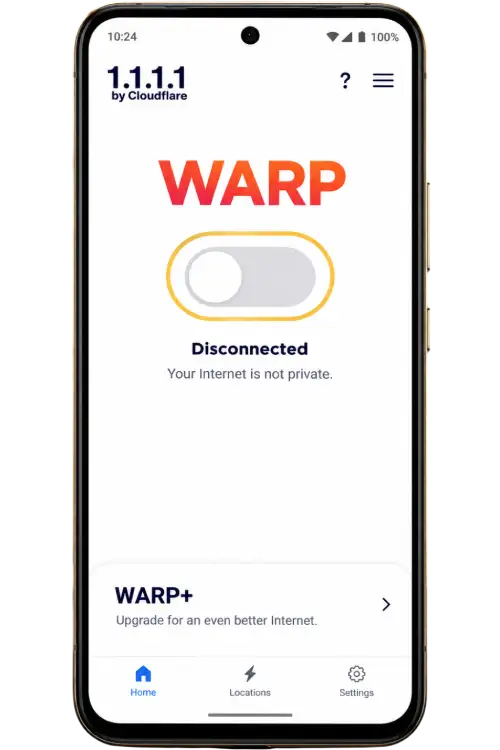
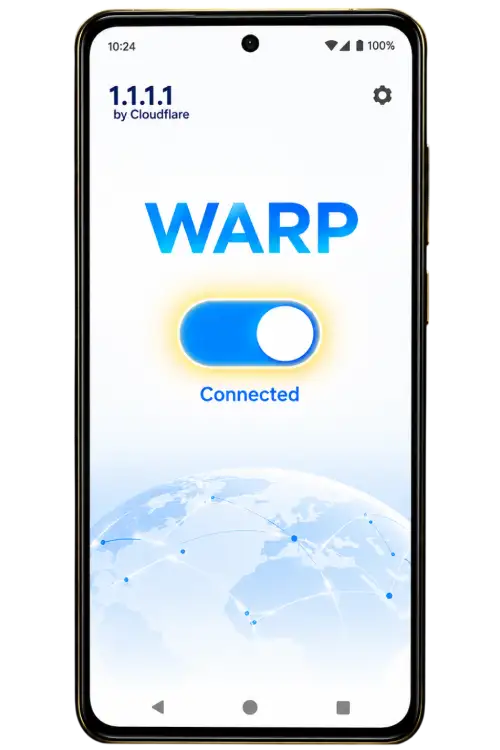
If you choose a connection application, read its modes and privacy information. DNS-only settings and VPN connections affect traffic differently. Neither can repair an incompatible installation or guarantee that a destination will be available.
Return to your previous connection settings if a change makes performance worse. Avoid combining several VPNs, proxies and custom DNS settings during diagnosis. Keep a note of changes so you can explain which comparison produced each result.
iPhone and iPad access
APK files are designed for Android and do not install on iPhone or iPad. Repeatedly downloading the same package in Safari will not convert it into an iOS application. Use a compatible browser or an iOS method actually offered by the destination.
A website may offer a home-screen shortcut through the browser. That shortcut can provide convenient access but should not be described as a native iOS application unless it actually is one. Review the destination when opening it again.
Be cautious about unrelated configuration profiles or management requests presented as an APK workaround. Such changes can affect device settings beyond the website you want to open. Do not install a profile whose purpose and source you cannot establish.
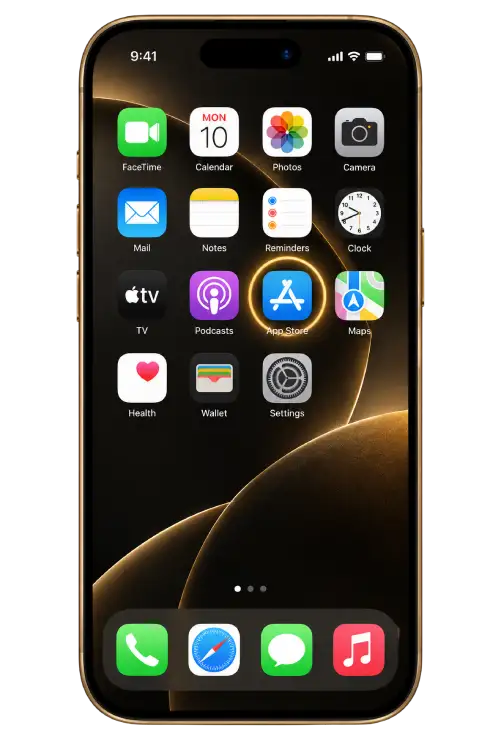
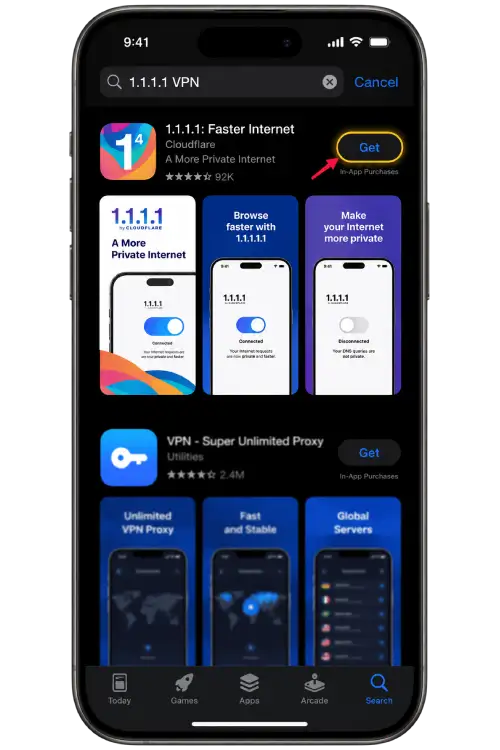
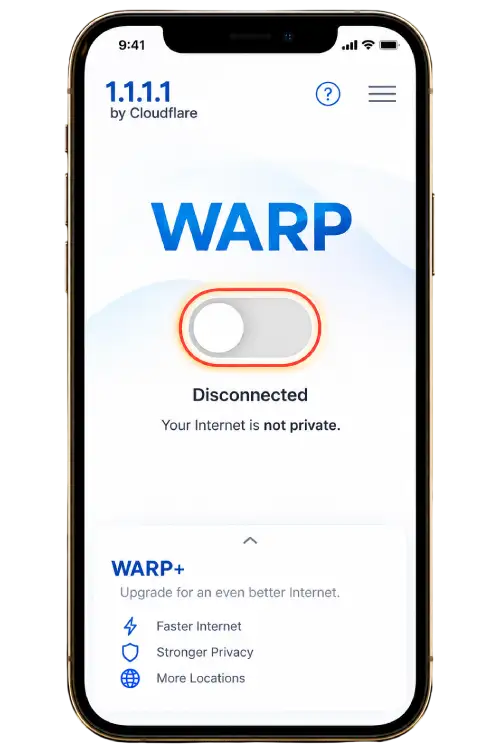
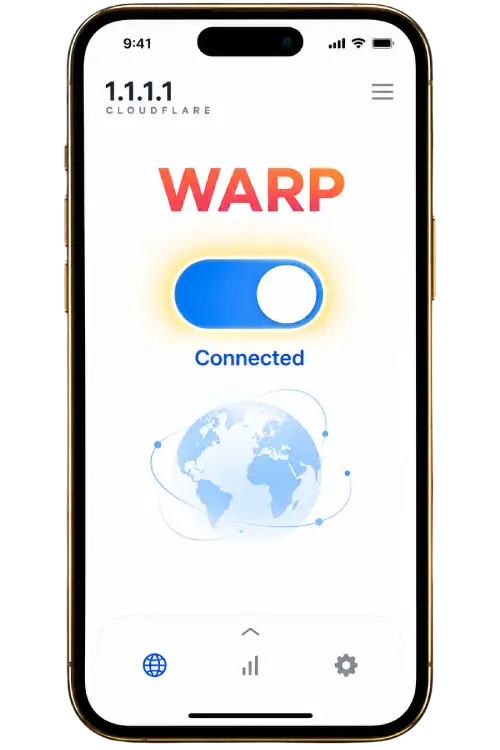
The iOS connection tutorial on this website concerns a separate connection application. It does not install the destination service’s app or verify that service’s identity. Keep those two installation decisions separate.
Before removing or reinstalling
Removal can delete local preferences, downloaded information and other app-specific data. Check what you need to preserve before uninstalling. Confirm that you know the account identifier and can use the recovery method without relying on the existing session.
Reinstallation should address an identified software problem rather than serve as the first response to every error. It does not reset a password, approve a registration or remove a restriction applied by an external service.
If you decide to reinstall, reassess the source of the package. Do not assume a file is genuine simply because a similarly named app was previously on the device. Review warnings and permissions again during the new installation.
When an application is no longer needed, remove it through the device’s normal controls and review any temporary installation permission you enabled. Removing an app does not necessarily delete an external account; account closure follows that service’s own process.
Prepare an app support report
State which stage failed: download, installation, first launch, connection or sign-in. Include the exact error wording and the approximate time. A precise description is more useful than saying only that the app does not work.
Add your device model, operating system version and application version when available. Describe the source used for the package and whether browser access still works. Mention any network comparison or setting change already attempted.
Hide passwords, verification codes, account identifiers and private links in screenshots. Avoid sharing a full device-information export when a few ordinary details answer the question. Do not provide remote access merely to demonstrate an error.
Assistance depends on the contact channels currently listed and the recipient’s ability to investigate. This website cannot inspect your device, certify an external package or guarantee a resolution time.
App questions
Where is the app download button?
A Download App button appears when a download destination is listed. If it is absent, this page does not currently provide a package link. Do not replace it with a file from an unknown message or search advertisement.
Is the package verified by this website?
This page does not publish a package signature, checksum or independent software audit. A listed link is not a guarantee about a file’s origin or behavior. Review the source, developer information and requested permissions before deciding whether to install.
Can an Android APK run on an iPhone?
No. APK files are Android installation packages. On iPhone or iPad, use compatible browser access or an iOS distribution method actually provided by the destination service.
Why does Android ask for installation permission?
Android may require permission for the browser or file manager opening a package from outside its usual app store. Review the source before allowing it and turn the permission off afterward when it is no longer needed.
Should I ignore a device security warning?
No. Read the warning and investigate the reason. Do not disable device protection simply to complete an installation. If you cannot establish the source or understand the warning, stop and use browser access where available.
Will reinstalling recover an account?
Reinstalling software does not recover a password or remove an account restriction. It can also delete local settings or files. Use the destination’s recovery process for account problems.
Does a connection application fix every app error?
No. It cannot repair an incompatible package, grant account approval or restore an unavailable server. Identify whether the problem concerns installation, connection or account access before changing settings.
What details help with an installation report?
Provide your device model, Android version, available storage, visible package version and exact error message. State the source you used without sharing private links, account tokens or passwords.