A checked destination
Read the actual hostname and review unexpected redirects before entering personal information. A copied logo does not confirm who operates the registration page.

Prepare your details, understand the registration screen and keep control of your password and verification methods from the beginning.
Start with an address you can check, details you control and time to review the result.
Read the actual hostname and review unexpected redirects before entering personal information. A copied logo does not confirm who operates the registration page.
Use an email address or phone number you can continue accessing. It may be needed for verification, recovery or account notices.
Prepare a password you do not use elsewhere. Store it privately and keep verification codes out of messages, screenshots and shared notes.
This mayonjl registration guide explains how to prepare for an external account-creation process. The destination service determines eligibility, required information and the conditions attached to an account. Read those conditions before submitting a form rather than treating registration as a series of buttons to press.
This page does not create accounts or collect registration details. A listed registration button opens an external destination. Check the final address after it loads and decide whether you understand the information being requested before proceeding.
Before creating an account, read the destination’s eligibility conditions. Requirements may depend on the service, the location where it operates and the type of account being requested. This guide does not determine your eligibility or replace those conditions.
Review the terms presented during registration and understand what accepting them means. If a condition is unclear, seek clarification before agreeing. Do not select a checkbox on the assumption that its wording is identical to another service you have used.
Consider whether you need a new account at all. If you previously registered with the same destination, sign-in or recovery may be the correct process. Creating another account can introduce confusion about which identifier, password or recovery method belongs to your original record.
Registration is also an opportunity to evaluate the destination itself. Unexpected installation requests, unexplained redirects and pressure to disclose information through chat are reasons to pause. A professional-looking form does not establish the identity or practices of its operator.
Read each field label before entering details. A username, display name and email address serve different purposes. The name others see may not be the identifier you later use to sign in. Keep a private record of the actual account identifier after registration.
Use a contact method you expect to retain. A temporary inbox or borrowed phone number may receive an initial code but leave you unable to recover the account later. Check that you can receive messages and that the contact details are typed correctly.
Phone fields may separate the country code from the local number. Follow the instructions displayed by the destination instead of adding or removing digits at random. For email addresses, check spelling and punctuation carefully; an unnoticed error can send notices to the wrong destination.
Provide only information requested by a process you understand. If the form distinguishes optional and required fields, review that distinction. Do not enter unrelated account details or additional personal information into a general notes field merely because there is space available.
Allow the destination to load fully. Read the hostname, identify the registration form and review any conditions displayed before the fields. Stop if a browser warning or unexpected redirect makes the destination uncertain.
Enter accurate details in the format shown. Work through fields in order and check whether autofill has inserted unrelated information. Avoid using another person’s details or an identifier you cannot retain.
Follow the password rules displayed by the destination. Use a unique value and review any confirmation field. Save it in a private password manager rather than a shared conversation or public document.
Check the delivery method and use the code for the current request. Follow the visible timer and avoid multiple overlapping attempts. Keep the code within the process you initiated.
Check identifiers, selected options and required acknowledgements. Read the terms before accepting them. Submit once and wait for the destination’s response rather than repeatedly pressing the button.
A submitted form may still require confirmation or review. Follow the result actually displayed. Record your account identifier privately and keep any recovery information separate from ordinary screenshots.
Follow the length and character requirements shown by the destination. A password manager can help create and retain a unique password without relying on a memorable phrase used across several services. Do not reuse a password from your email account.
If a confirmation field reports a mismatch, check keyboard language, capitalization and accidental spaces. Mobile input can change what appears when switching between character keyboards. Use a reveal control only when your screen is private, then hide the password again.
Save the password against the intended hostname and account identifier. Review a password-manager prompt carefully if it offers to overwrite an existing record. You may be creating a new account, updating an old account or accidentally working on a different destination.
Do not send the password to an agent, a support recipient or someone offering to complete the form for you. Assistance with registration should focus on the error and instructions. If a secret has already been disclosed, change it through the verified destination and review any other accounts that used the same value.
Verification is tied to the destination’s process and the details you entered. Check the displayed email address or phone number before requesting a code. Correcting a typing error is more useful than repeatedly requesting messages sent to the wrong contact method.
For email, inspect the inbox and spam folders associated with the address. For phone messages, check reception and whether you can receive ordinary messages. Delivery delays can occur, but this guide cannot determine the status of a provider’s message system.
Follow the resend timer and expiry information displayed on the form. A later request may replace an earlier code. If several messages arrive together, identify the one belonging to the current attempt rather than cycling through them rapidly.
Enter the code only into the registration process you initiated. A message from another person asking you to forward it is separate from that process. Unexpected codes should not be treated as approval requests that you must complete. If you did not start an attempt, do not help someone else finish it.
Never share a verification code, recovery link or password in a registration support conversation.
A form error often identifies the field that needs attention. Read nearby labels and any message at the top of the form. On a phone, dismiss the keyboard or scroll to check whether an explanation appeared outside the currently visible area.
Correct the reported issue first. Changing every field at once makes it harder to understand what was rejected. If the page says a password does not meet its rules, review those rules instead of replacing your email address or starting another account.
| What appears | What to check |
|---|---|
| Required field | Review the highlighted field and its expected format. |
| Invalid identifier | Check spelling, spaces and the field’s actual instructions. |
| Password mismatch | Compare both entries privately and check keyboard settings. |
| Code expired | Follow the resend process and use the current request. |
| Already registered | Consider sign-in or recovery for an existing account. |
| No response | Check loading, connection and browser behavior. |
The examples above describe categories of problems, not guaranteed messages from the destination. Record the exact wording you actually receive. If the error remains unclear, preserve that wording and seek assistance without including the sensitive values entered into the form.
An already-registered message can mean that the identifier belongs to an existing account. Think back to earlier registrations and check your private account records. An old bookmark, confirmation message or saved password may help identify the correct sign-in process.
Do not assume that creating another record is the appropriate solution. The destination may have rules about multiple accounts. Read those rules and use recovery when your goal is to regain access to an account you already created.
If you no longer control the original contact method, explain that problem through the destination’s verified assistance process. Do not claim ownership by sending a password to a stranger or publishing personal documents in a group conversation.
A message that you believe is incorrect should be reported with context: the affected field, the visible wording and the time of the attempt. This website cannot inspect the destination’s account records or decide whether an identifier is available.
Registration forms can behave differently inside messaging applications and standalone browsers. If a page does not respond in an embedded view, open the checked destination in your usual updated browser and compare the result.
Allow the form to load before entering details. A partial page may omit validation messages or verification controls. Reload once if necessary, but remember that refreshing can remove unsent information and may require a new challenge.
Browser extensions and strict storage settings can affect forms. Investigate one setting at a time and only for a destination you trust. Do not disable protections across all websites simply because one form fails. Record any changes so they can be reversed.
Network changes are useful for comparing connection problems, but they do not correct an invalid identifier or approve an account. A VPN is not a registration requirement unless the relevant service clearly states its own access conditions. Connection tools do not bypass eligibility requirements.
Read the response after submitting. A confirmation screen, a pending-review message and an error require different next steps. Do not assume that an account is ready solely because the form stopped displaying.
If registration succeeds, retain the account identifier and update your password-manager record. Review available recovery methods and security settings. Check that the contact details shown are yours before relying on them for future account recovery.
Keep confirmation records private. A screenshot may contain account references or links that should not be posted publicly. Store only what you need and avoid saving exposed passwords alongside ordinary images or shared documents.
If a review is pending, follow the destination’s instructions rather than submitting repeated forms. Processing and acceptance depend on that service. No part of this guide can guarantee approval, waive a condition or establish a completion time.
Information entered into an external registration form is handled by that destination and any services it uses. Read its privacy information separately. The policy for mayonjl.net does not describe every external operator’s practices.
Review consent choices and optional communications carefully. A required acknowledgement and an optional subscription can appear close together. Select options based on their actual wording rather than their position or appearance.
Be cautious if registration shifts into an unrelated chat conversation or asks for documents through an unfamiliar profile. Verify the recipient and understand the purpose before providing additional information. A familiar display name or logo can be copied.
This guide offers preparation and troubleshooting information. It does not verify an external operator’s identity or promise how that operator will use your information. If a request is unclear, pause before sharing more.
A useful registration report identifies the step that failed. Explain whether the page did not load, a field was rejected, a message failed to arrive or a submission remained pending. Include the exact error wording when available.
Add your device type, browser or app version, approximate time and the checked destination hostname. Mention whether another network or browser produced the same result. These details provide context without revealing credentials.
Remove passwords, verification codes, full personal identifiers and recovery links from screenshots. If a screenshot is unnecessary, describe the message in text. Do not send an entire registration form just to show one highlighted field.
Use the contact channels currently listed and verify recipient names carefully. Contact availability and response times depend on the recipient. This website cannot access account records or complete external registration reviews.
No. This page explains registration preparation and troubleshooting. It does not collect registration details. When a registration destination is listed, the Open Registration button takes you to that external service.
Requirements depend on the destination service. Read the field labels, eligibility conditions, terms and privacy information on the actual registration page. Do not assume that every service requests the same information.
Check whether you already have an account. Use the destination’s sign-in or recovery process instead of repeatedly creating new registrations. If you believe the message is incorrect, explain it to the relevant support recipient.
Follow the resend timer shown by the destination. Multiple requests may invalidate older codes or make it difficult to identify the current one. Check the delivery address and allow the stated waiting period before retrying.
Entering information yourself helps you understand the terms and retain control of your credentials. Do not give another person your password, verification code or recovery link to complete registration on your behalf.
Installation and registration are separate actions. An application may provide a registration screen, but installing a package alone does not establish an account or confirm that you meet the destination’s requirements.
That depends on the destination’s account settings and policies. Check editable fields and recovery methods before submitting. Do not assume that an identifier, region or verification method can be changed immediately afterward.
No. A submitted form may still require verification or review. Read the result shown by the destination. This website cannot approve accounts, waive requirements or guarantee a particular processing time.
Choose your device to view the illustrated steps. Application screens and permission wording may vary by version.
Open the provider website using the button below and follow its App Store link. Check the application name and developer before installing.

Open the application and read its introductory screens and privacy information. Review the available connection modes before continuing.
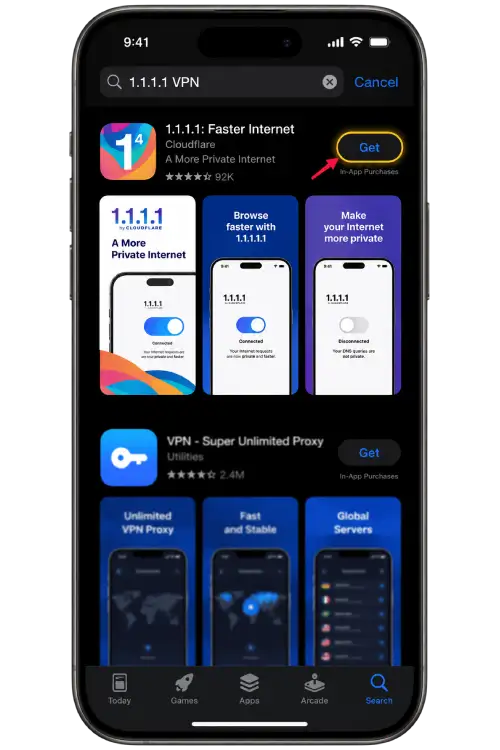
If you choose to enable the connection, iOS may request permission to add a VPN configuration. Approve it only if you recognize the application you installed.
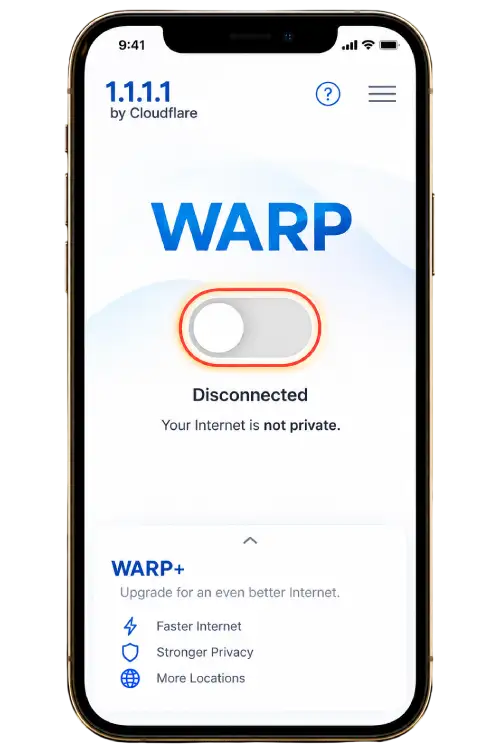
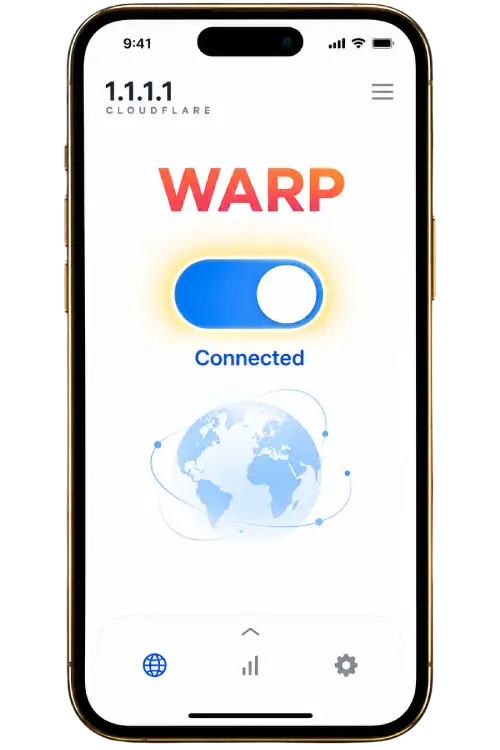
Wait for the application to show its connection status, then return to your browser and reload the page. If access becomes slower, disconnect and compare your normal connection.
Open the provider website using the button below and follow its Google Play link where available. Check the developer and avoid unrelated download advertisements.
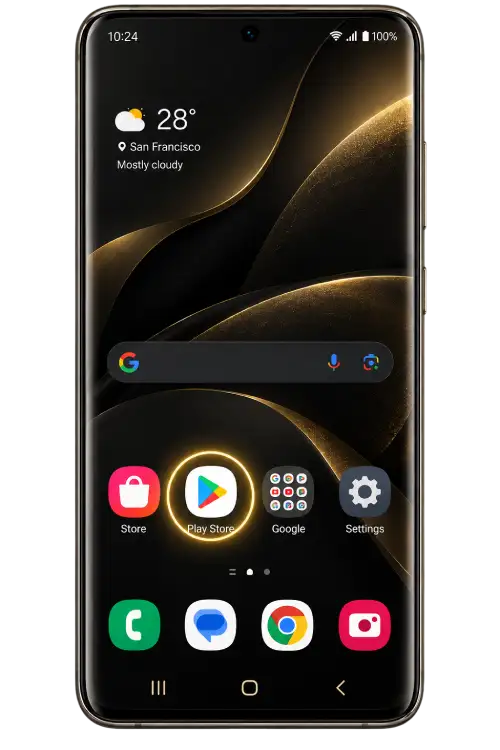
Launch the application and read the setup information. Check the connection mode and privacy settings rather than accepting options you do not understand.
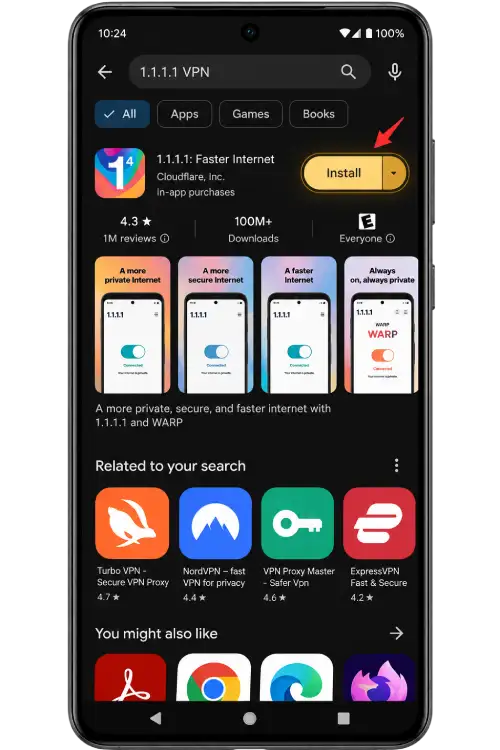
Android may display a system connection request. Confirm the application name and read the notice before allowing it to create a VPN connection.
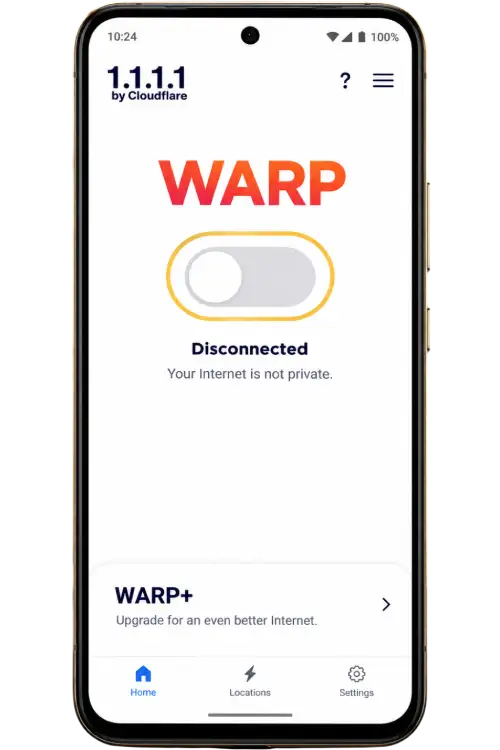
After the connection is established, return to your browser and refresh the page. If the result does not improve, disconnect and try another network or use the support guide.
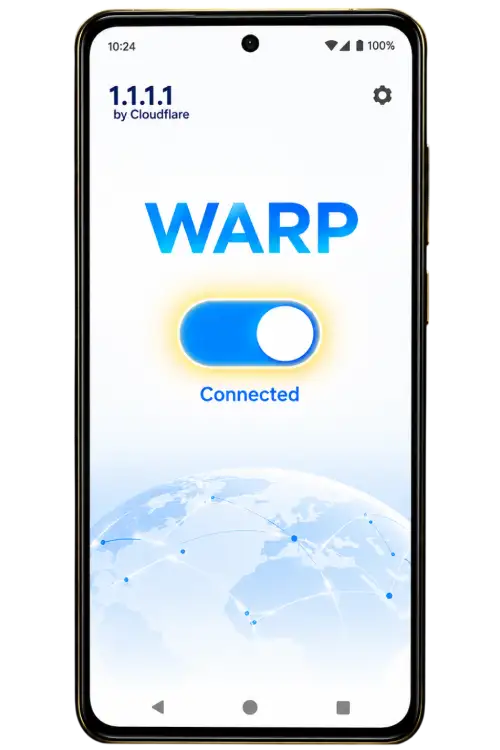
A connection application does not guarantee that a website will load. DNS-only settings and VPN modes work differently. Read the provider’s explanation, use services permitted on your network and disconnect if you no longer need the connection.