Before you sign in
The first part of a successful mayonjl login attempt is identifying the destination you intended to open. A loading page, a remembered bookmark and a link in a message can lead to different addresses. Read the hostname in your browser before entering account details, especially if you arrived through a redirect.
This page explains a troubleshooting process. It does not contain an account login form and does not receive your password. When a login destination is listed, the button above opens that external address. The service at that address determines its own sign-in fields, verification requirements and recovery options.
Prepare the identifier you used when creating the account. Depending on the destination, that might be a username, an email address or a phone number. Having several possible identifiers is a common source of confusion. Check your own registration records rather than guessing which field the service expects.
Use a device and connection you control where possible. Avoid entering credentials on a shared screen that others can observe. If you must use a shared device, decline password saving, do not select a persistent-session option and sign out when you finish.
Follow the sign-in sequence
-
Open the intended destination
Use an address you can verify. Allow the page to finish loading, then inspect the final hostname. Stop if the browser shows a certificate warning or the page asks you to install unexpected software before you can view the form.
-
Choose the correct account
Check which identifier the login field requests. If a password manager fills the form, confirm that it selected the intended account. Remove accidental leading or trailing spaces without changing the actual identifier.
-
Enter the current password
Type or autofill the current password privately. Check the keyboard language and capitalization. If you use a reveal-password control, make sure nobody else can see the screen and hide the password again before continuing.
-
Complete the displayed check
Follow any verification instructions shown by the destination. Use codes only within the process you initiated. Do not forward them to another person or enter them into an unrelated page sent through chat.
-
Submit once and review the result
Press the sign-in control once and wait for a response. If an error appears, record its wording before retrying. Repeated tapping or opening parallel attempts can create additional challenges and make the result harder to interpret.
Check the account identifier
A correct password will not help if it is paired with the wrong account identifier. Read the label beside the field rather than assuming every service accepts both a username and an email address. If the field requests a phone number, check the country code and formatting instructions actually displayed.
Autofill can introduce a mismatch when you have more than one saved account. It may also populate a recovery email into a username field. Review the selected record in your password manager without copying its contents into a support conversation.
Copying details from a document can add invisible spaces or line breaks. If the service rejects an identifier that looks right, carefully re-enter it. Preserve meaningful punctuation and do not remove characters simply because another website uses a different format.
Account names may differ from public display names. A name visible on a profile or in a conversation is not necessarily the value used to sign in. Check your registration confirmation or the destination’s recovery instructions to identify the correct account.
Work through password problems
Begin with small input checks. Confirm that Caps Lock is not changing the password and that your keyboard layout produces the characters you expect. Mobile keyboards can also add spaces when pasting text. Review the entry privately before trying again.
If you recently changed the password, a saved browser entry may still contain the previous value. Update a password-manager record only after you have confirmed that the new password works on the intended destination. Otherwise, you may replace a useful record with another incorrect value.
Avoid a long sequence of guesses. The destination may apply temporary restrictions or request additional verification after repeated failures. Follow any waiting period shown on the page. A different route or device should not be treated as a way to bypass an account restriction.
When you no longer know the current password, use recovery. Choose a replacement that is unique to the account and store it securely. Do not send the new password back to someone who helped explain the process. Support can discuss an error without knowing your secret.
Handle verification carefully
A sign-in process may request a code, an authenticator response or another challenge. The exact method depends on the destination and your account settings. Complete only the challenge associated with the attempt you started.
If a message does not arrive, check that you are reviewing the correct inbox or phone number. Look in spam folders for email and check whether your device has reception for messages. Do not repeatedly request new codes while an earlier request is still pending.
When multiple codes arrive, read the destination’s instructions and use the code associated with your current request. An older code may expire or become invalid after another is issued. If the screen displays a resend timer, wait for that timer rather than repeatedly refreshing.
An unexpected verification message can indicate that someone entered your identifier. It does not mean you should approve the attempt. Do not share the code or accept a prompt you did not initiate. Review the account through a destination you already trust if the messages continue.
Verification codes are account secrets. Enter them only into the intended sign-in or recovery process you initiated.
Separate browser issues from account errors
A blank page or a form that never responds can involve the browser rather than the password. Reload once and allow the page to finish. Check whether a browser update is available and whether an extension is preventing part of the page from working.
Try a normal browser tab if you opened the link inside a messaging application. Embedded browsers can handle storage, redirects and external verification differently. Copy the verified address into your usual browser rather than following unrelated suggestions that appear in an in-app view.
If the site repeatedly returns you to its login screen, inspect cookie settings. Blocking all storage or removing it immediately can prevent a session from persisting. Change permissions only for a destination you trust; do not weaken browser protections globally just to investigate one website.
Clearing data for the affected site may help with stale state, but it also signs you out and can remove local preferences. Preserve information you need first. A private window can provide a comparison, although its stricter storage settings may create different behavior of their own.
Record which change improved the result. Updating the browser, disabling extensions and changing networks at the same time makes the cause difficult to identify. If the page gives a clear account error, return to the account-specific instructions.
Sign in from a phone or app
On a phone, the keyboard may cover the submit button or an error message. Scroll the page or dismiss the keyboard before assuming the form has stopped working. Avoid repeated tapping while the page is processing a request.
If an installed application cannot sign in, check its version and connection before reinstalling. Read any update prompt carefully and obtain software through a source you can verify. A file shared by an unfamiliar account is not a reliable repair method merely because it uses the same name or icon.
Browser access can help you compare whether a problem is specific to an application. However, the destination determines whether accounts and features are shared across its app and website. Do not assume that two similarly named services use the same credentials.
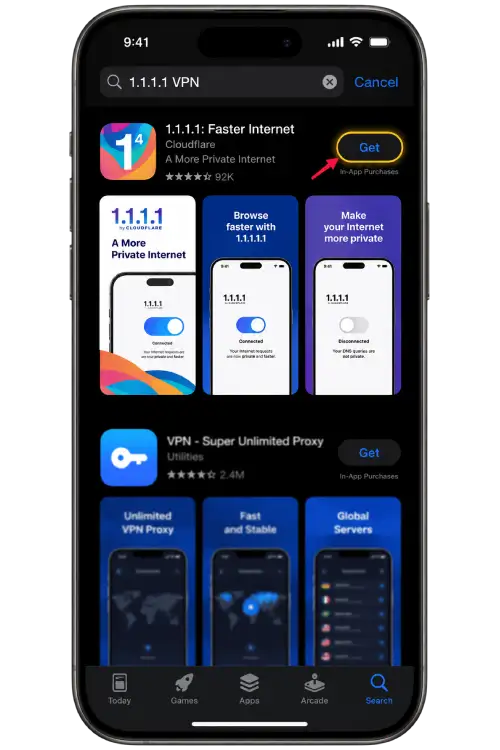
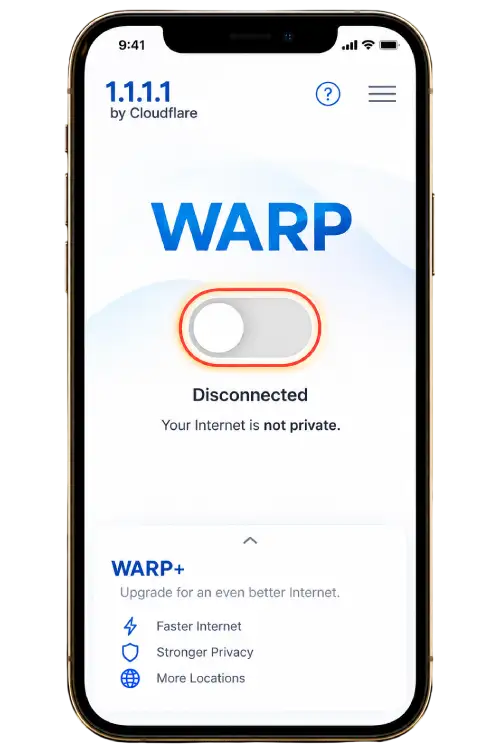
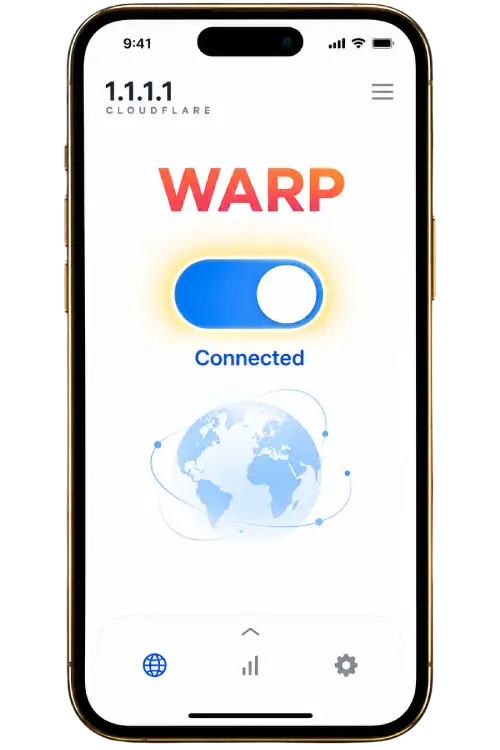
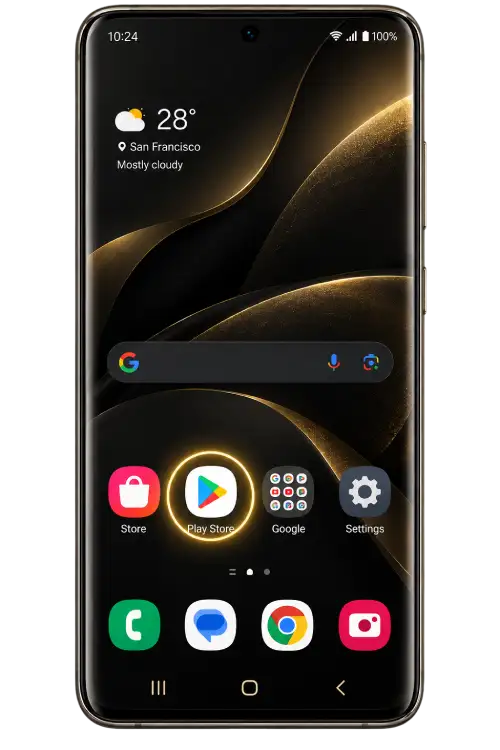
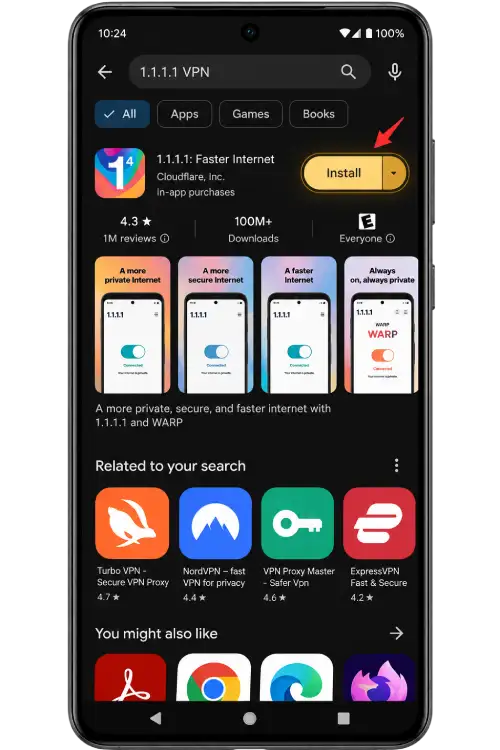
An Android APK cannot be installed on an iPhone. Likewise, a connection application is separate from the service you are trying to access. Installing or enabling it does not verify your account, reset a password or remove a service restriction.
Understand sessions and sign-out
Signing in creates a session whose duration and behavior are controlled by the destination. A session may end after inactivity, a password change or another account event. Being returned to a login screen does not by itself establish that the password has changed.
Private browsing and automatic data deletion can end sessions when a window closes. Review those settings if you are consistently signed out. Choose persistent sign-in only on a device you control and understand that it does not guarantee indefinite access.
Using multiple tabs can produce confusing results when one tab signs out or completes recovery. Finish sensitive account actions in one active tab and refresh another only when needed. Avoid submitting an old form from a tab that has been open for a long time.
On a shared device, use the destination’s sign-out control when finished and check that account pages no longer open without authentication. Closing a tab alone may leave a session active. Decline password saving and remove downloaded account files if any were created.
Use the account recovery process
Start recovery from the intended destination rather than a link sent by an unknown person. Review the recovery method offered for your account. You may need access to the email address, phone number or authenticator previously associated with it.
If a reset message arrives, check its context and destination before following it. A recovery link can provide temporary control of an account. Treat it as sensitive and do not forward it to someone offering to finish the process on your behalf.
Losing access to the original recovery method can require assistance from the destination service. Explain which method is unavailable without posting private records publicly. Supply additional information only through a verified process after understanding why it is requested.
Recovery outcomes depend on that service’s policies and the information available. This website cannot approve ownership, remove restrictions or promise a recovery time. After a successful reset, update your saved password and review any account security controls the destination provides.
Protect the account while troubleshooting
Keep your troubleshooting process focused on information that can be shared safely. A recipient can usually understand a timeout, an installation problem or a rejected identifier from the error wording and device details. They do not need your password to read that report.
Be cautious about requests to install remote-control software, disable security tools or approve an unexpected login. These actions can expose more than the website you are trying to use. Verify the recipient independently before considering any unusual instruction.
Use a unique password so that a problem with one service does not immediately expose another. If you believe a password has been disclosed, change it through the genuine destination and review other accounts where the same password was used.
A copied logo, a familiar profile picture or an encrypted connection is not enough to establish identity. Check addresses and contact names carefully. Avoid acting under pressure when a message claims that immediate disclosure of a code is the only way to retain account access.
Prepare a support request that helps
Describe the problem in a short, reproducible sequence. For example, explain that you opened a particular address, entered your account identifier and received a specific error after submitting. State whether the same result occurs in the browser and the app.
Include the approximate time, device model, operating system and browser or application version. If you compared another network, mention the result. These details help distinguish an account issue from a device-specific loading problem.
Remove passwords, codes, personal identifiers and recovery links from screenshots. If an address contains a long token after a question mark, avoid sharing that full address publicly. Describe the page and error without exposing session information.
Keep a note of the guidance already attempted so you do not repeat changes unnecessarily. Contact availability depends on the channels currently listed. No response time or account decision is guaranteed by this guide.
Login questions
Where do I enter my login details?
Enter them only on the intended destination service after checking its address. This guide does not collect usernames, passwords or verification codes. Use a listed destination when available, then inspect the final browser address before continuing.
Why does a saved password fail?
The saved entry may belong to another account, an older password or a different domain. Review the account identifier and the selected password-manager entry privately. If you are uncertain about the password, use the destination service’s recovery process.
Should I register again if I cannot log in?
A new registration does not recover an existing account. Start with the recovery options for the original account. If the service reports that your email address or phone number is already registered, explain that message to the relevant support recipient.
What if my verification code arrives late?
Use the latest code requested by your current sign-in attempt and follow the expiry information displayed by the destination. Requesting several codes can make it unclear which is valid. Allow the stated waiting period before requesting another.
Can a VPN reset my password or unlock my account?
No. A connection tool changes how network traffic is handled; it does not reset credentials or override an account restriction. Use account recovery or the destination service’s support process for those problems.
Why am I signed out after closing my browser?
Private browsing, automatic cookie deletion, browser privacy settings or the destination’s session policy may end a session. Check whether you are using a private window and whether browser data is removed on exit.
Is the browser padlock enough to verify a login page?
No. It indicates an encrypted connection to the displayed address. It does not confirm ownership, reputation or a relationship to a brand. Check the actual hostname and be cautious about unexpected redirects.
Should I send my password to someone helping me?
No. Explain the error without providing your password, one-time codes or recovery credentials. Screenshots should hide sensitive information. If a support conversation asks you to disclose a secret, stop and verify the recipient through an independently trusted channel.